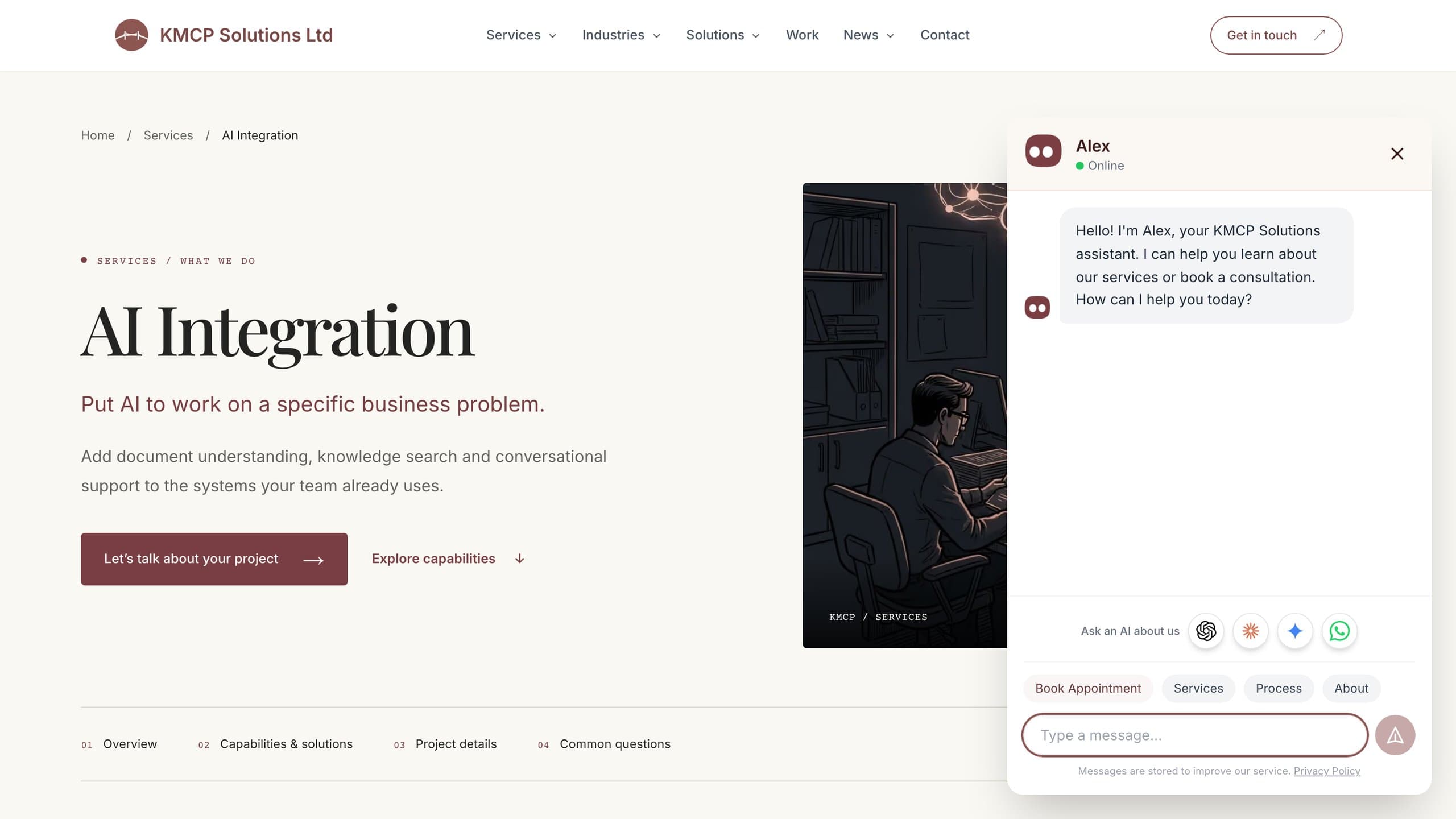
Live availability from Microsoft Graph
Free/busy is read from the calendar at request time and intersected with your weekly template and date overrides.
System Integration / Calendar · Ready-made solution
Visitors pick a free 30-minute slot from your real Microsoft 365 calendar, in their own timezone, and receive a Microsoft Teams invitation immediately. You set the weekly window and date exceptions in an admin screen; the website form, the Alex assistant and the WhatsApp assistant all book from the same source, so nothing is double-booked.

Product demo
A visitor in Istanbul picks a free slot shown in their own time, books it, receives the confirmation email with the Teams link, then gets the 15-minute attendance check. Pressing No cancels the Teams event and frees the slot without anyone touching the calendar.
Built by KMCP / Inside our platform
View full size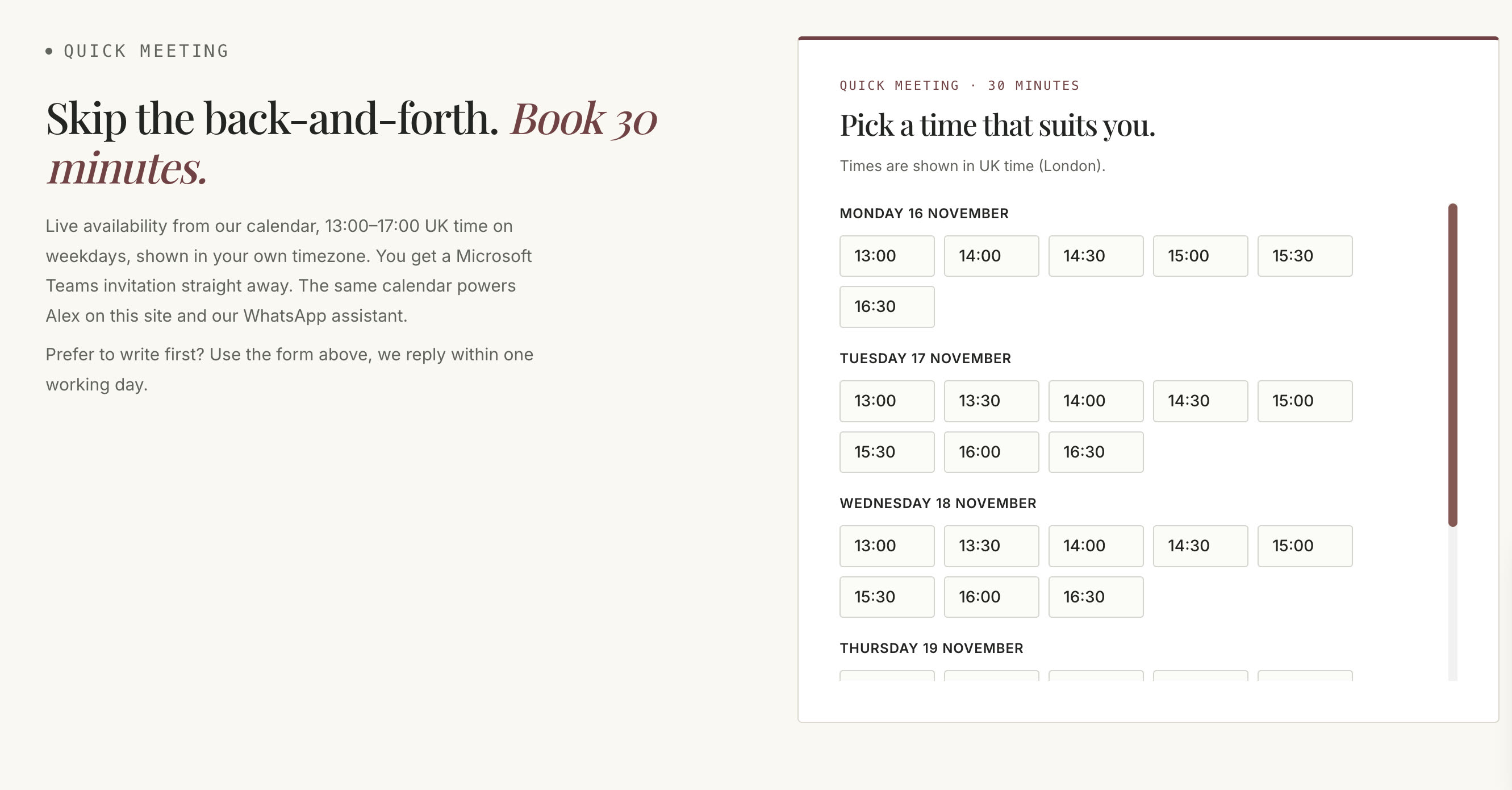
Free/busy is read from the calendar at request time and intersected with your weekly template and date overrides.
Slots are shown in the visitor’s timezone with London time alongside; bookings are stored and confirmed in UTC.
The event is created with a Teams link; the customer receives a confirmation email and calendar file, and the team is notified.
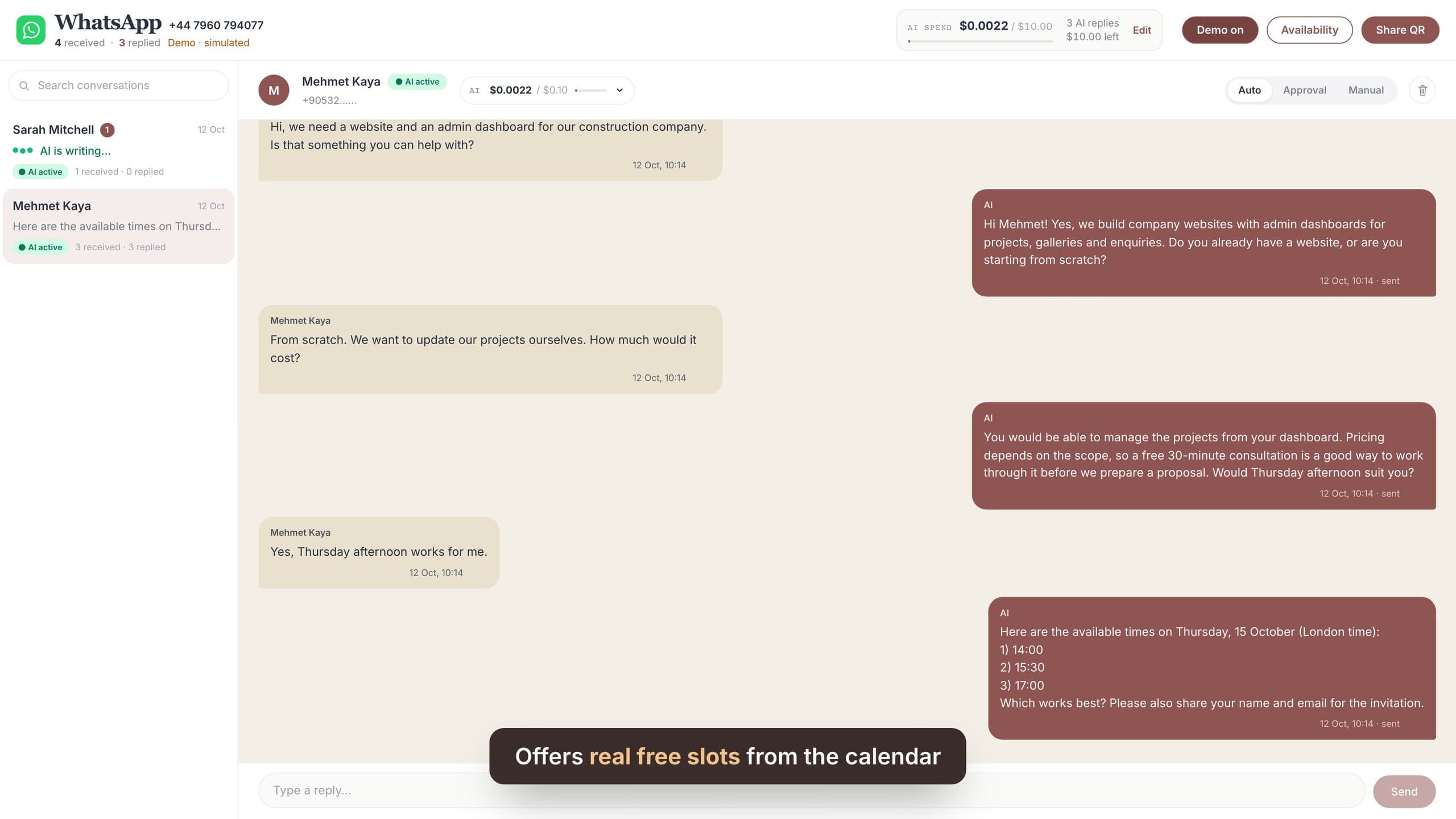
Contact page, website chatbot, voice agent and WhatsApp share the same availability and the same conflict re-check before writing.
Weekly hours, date exceptions and a booking horizon are edited in the admin panel; changes apply to new slots immediately.
Fifteen minutes before the start the customer gets a reminder with Yes / No buttons. No cancels the Teams event, frees the slot and alerts the team; Yes confirms attendance.
An example in practice
A prospect in Istanbul opens the contact page at 16:10 their time, sees Thursday 15:30–16:00 (13:30–14:00 London) free, books it and gets the Teams invitation before closing the tab. The same slot disappears for the WhatsApp assistant within the second.
More ready-made solutions
 Ready-made solutionData
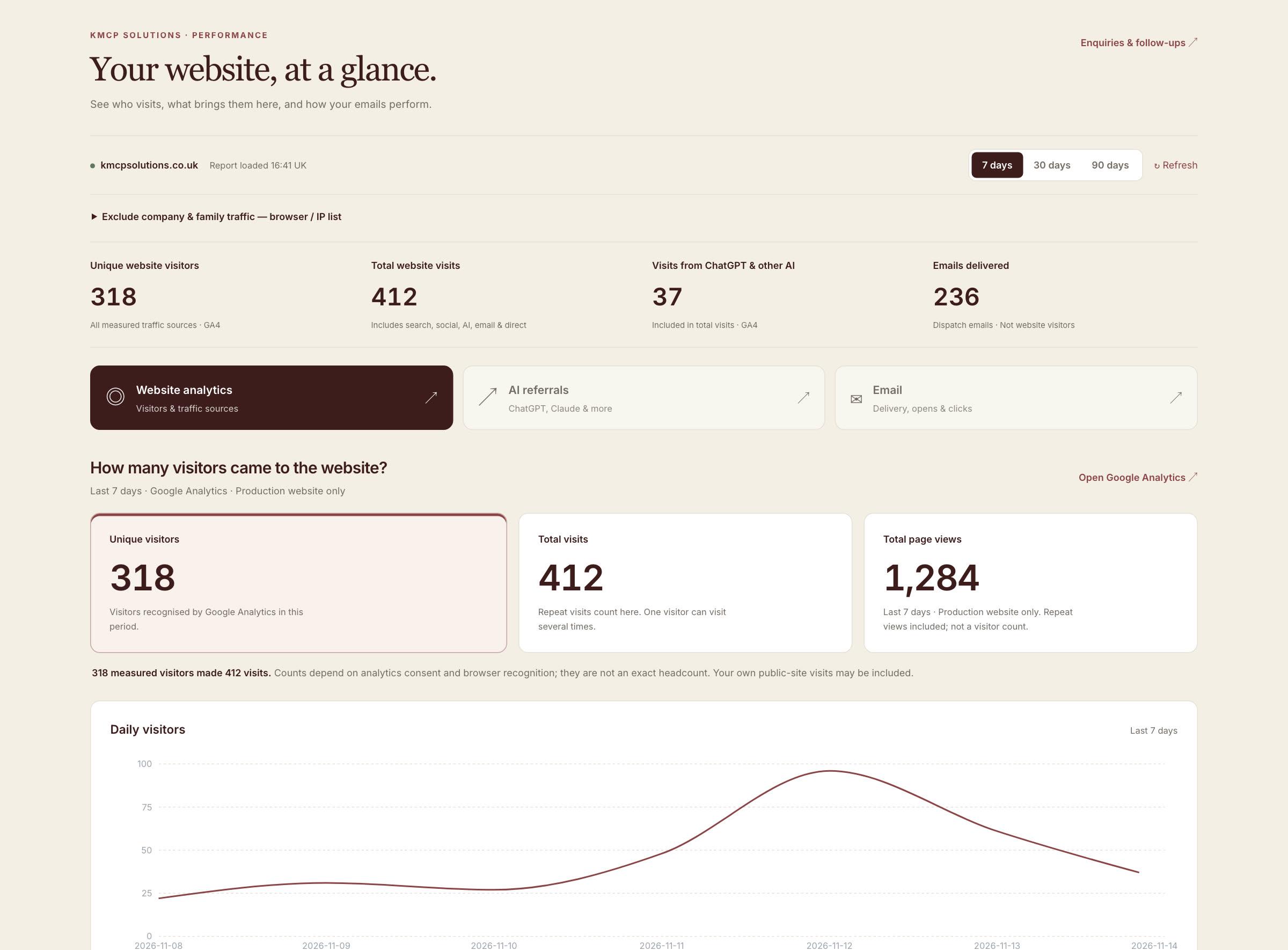
One plain-language dashboard that joins Google Analytics, AI-assistant referrals, crawler logs and email results, with every number explained.
 Interactive exampleDocuments & trust
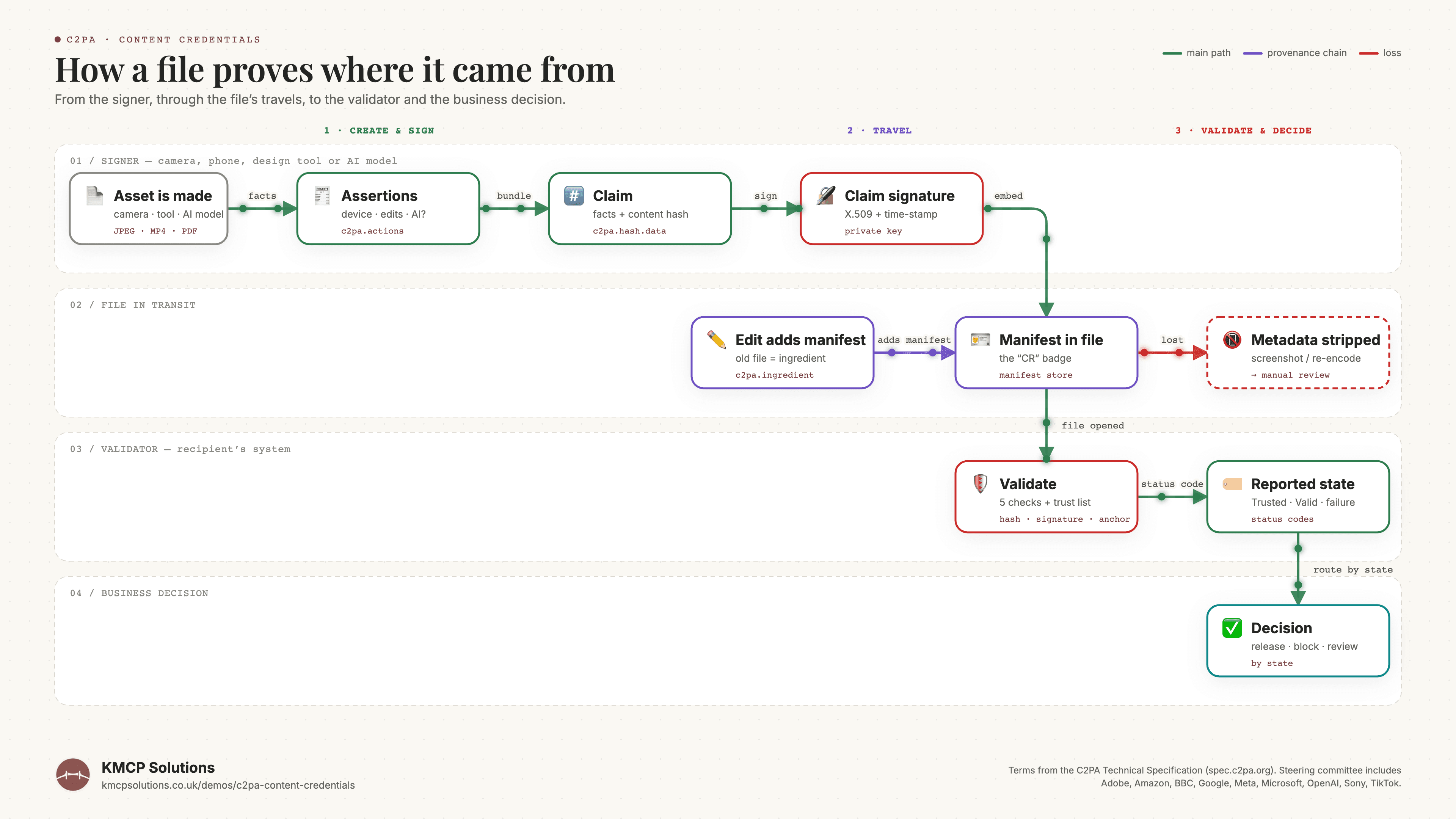
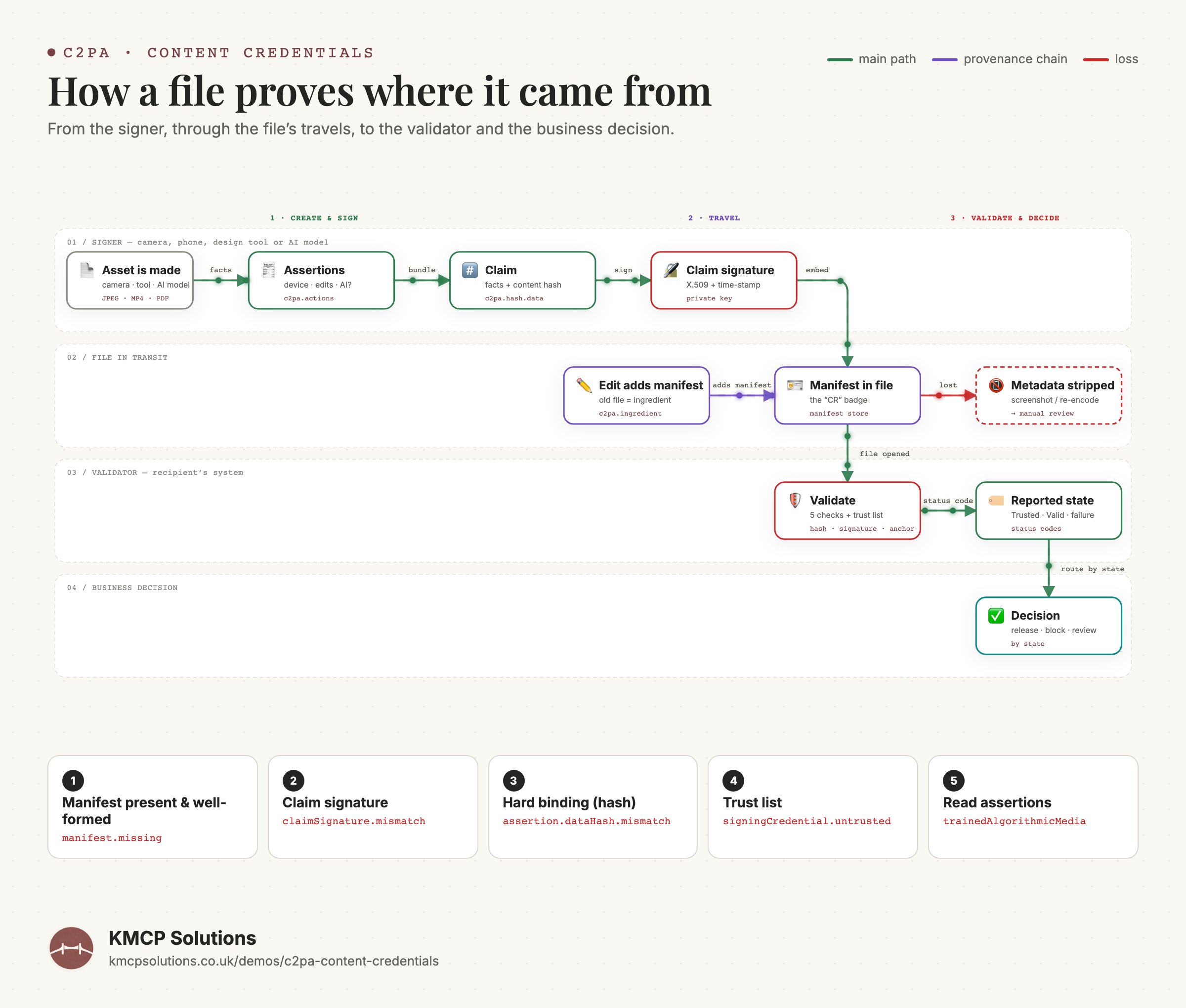
A validator reads a file’s signed history and routes invoices, certificates and media to release, block or manual review before anyone acts on them.
 Ready-made solutionMessaging
A shared inbox with AI-assisted replies, appointment booking and CRM context for every conversation.